Site Logo & Title
The site logo and title can be configured directly in the Site Editor by editing the navigation block in the header pattern.
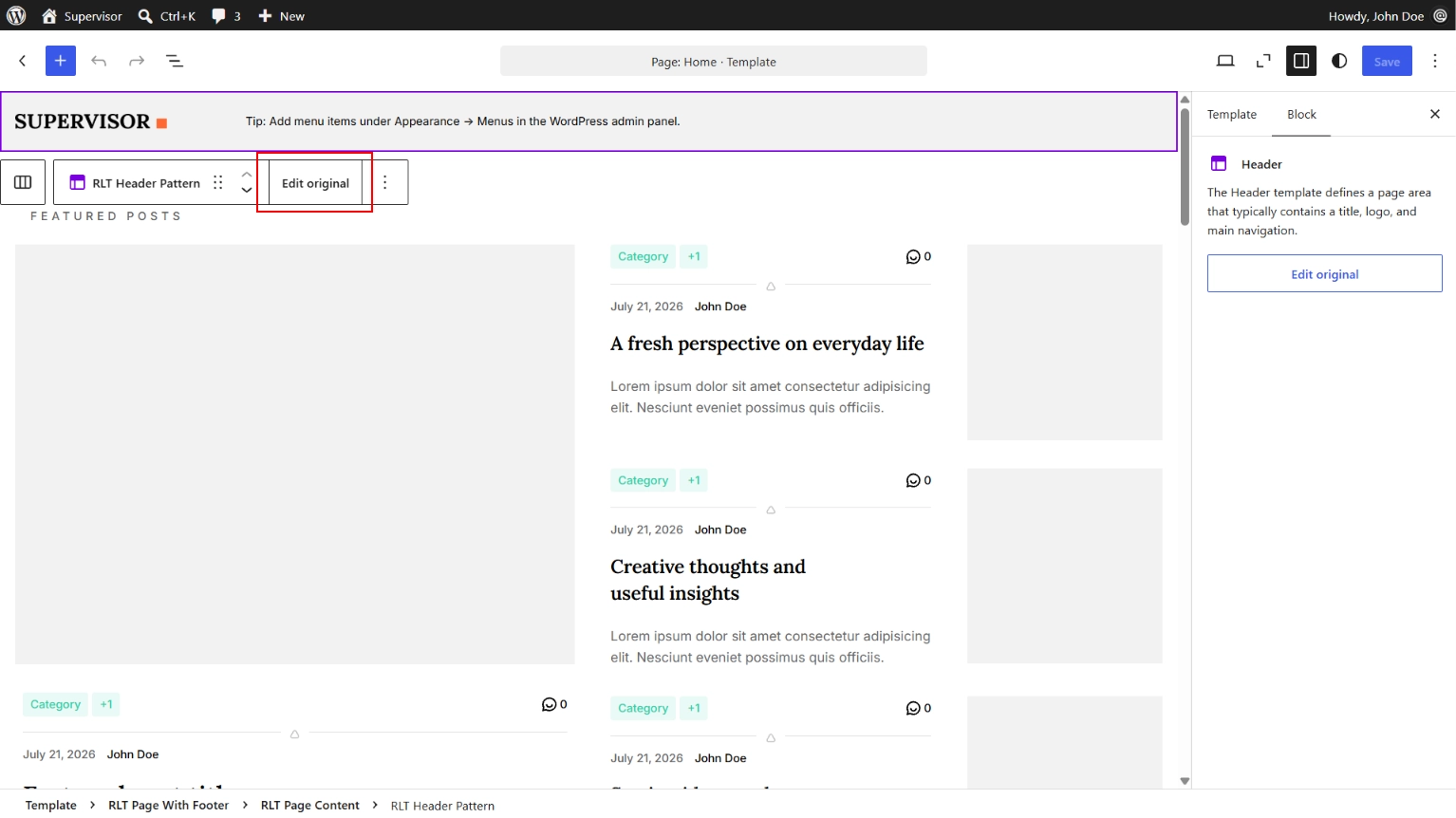
Open the Page: Home template in the Site Editor and select the RLT Header Pattern. In the block toolbar, click Edit original to open the pattern for editing (see Picture 1).
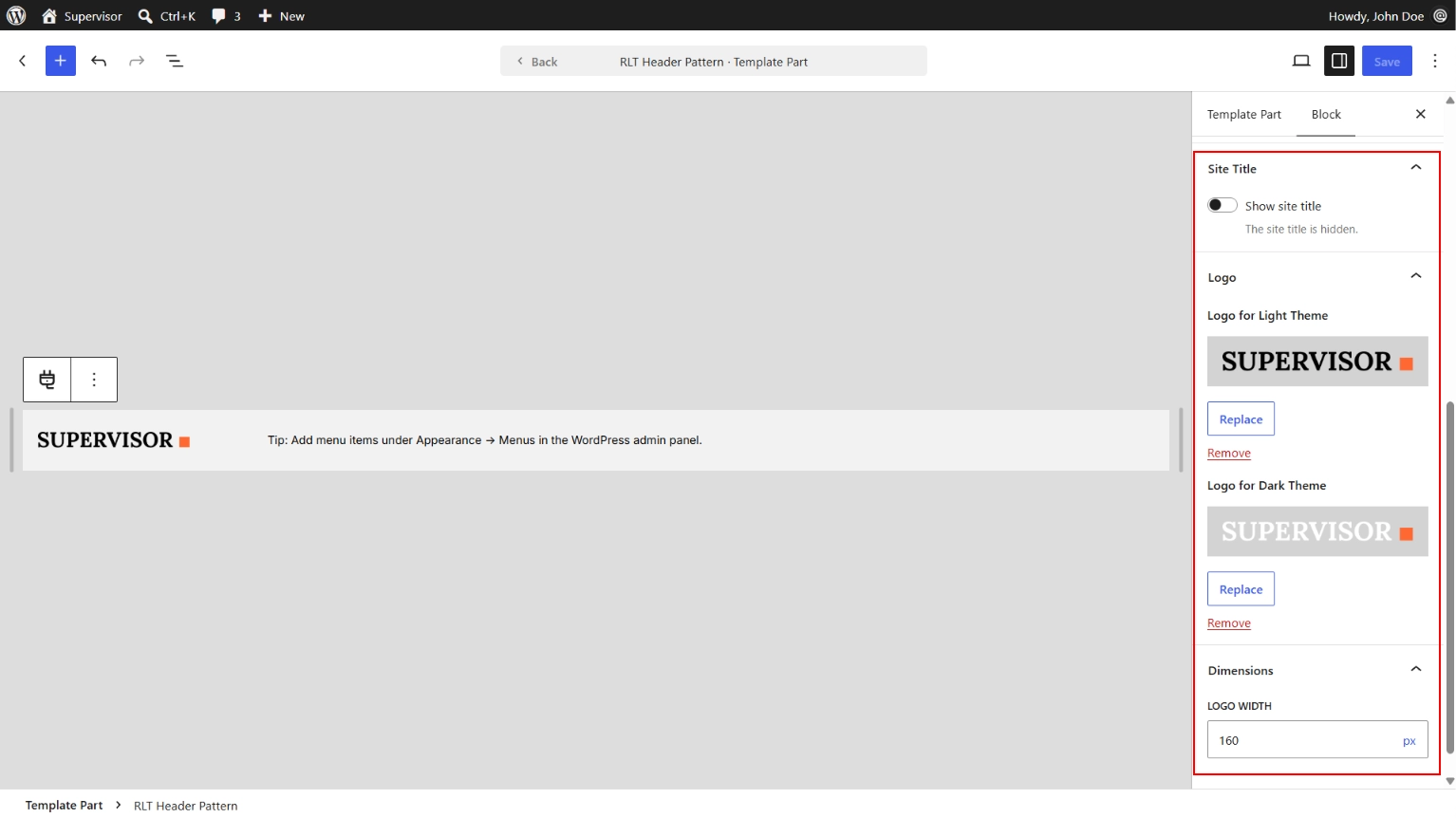
Select the RLT Navigation block and locate the Logo section in the right sidebar. Click Select image and upload the logo image prepared for the light theme. Repeat the process for the dark theme. Use logo images with identical dimensions to ensure consistent alignment when switching between color themes (see Picture 2).
In the same block settings sidebar, under Dimensions → Logo width, enter the desired logo width in pixels according to your logo's dimensions.
To display or hide the site title next to the logo, use the Show site title toggle according to your preference.
Don't forget to click Save to apply your changes to the pattern.
Before customizing, prepare two PNG logo images with transparent backgrounds: one for the light theme and one for the dark theme. Both images should have identical dimensions and be provided at 2× the intended display size to support Retina screens. For example, if the intended display size is 48 × 48 pixels, prepare images measuring 96 × 96 pixels.