Content Container
Use two nested Group blocks to create a content container with adjustable width. This setup allows you to control the width of inner content using the None, Wide width, and Full width alignment options.
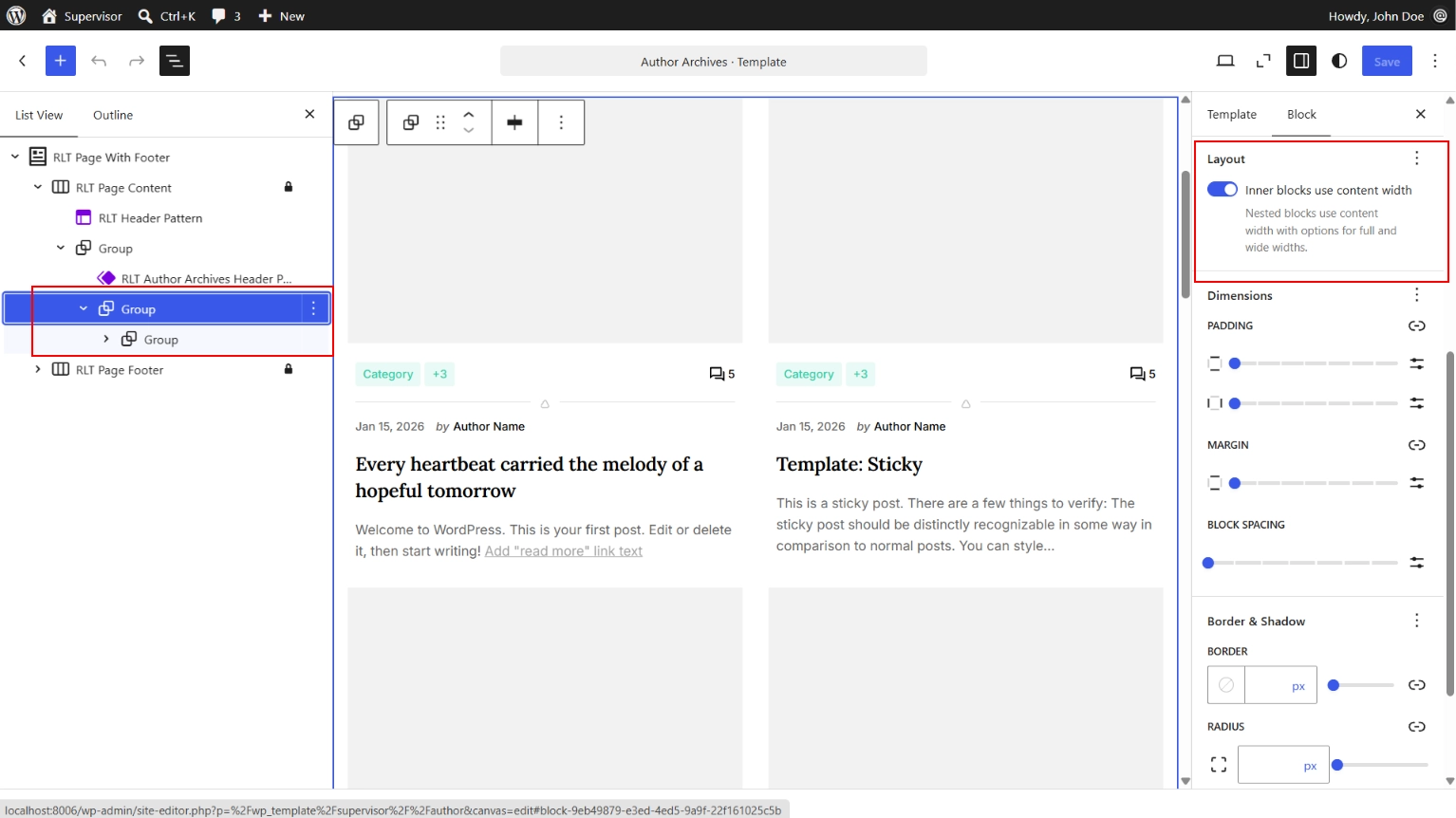
First, insert a Group block. This will serve as the outer container. In the block settings sidebar, enable Inner blocks use content width. This setting allows nested blocks to fill the available width of the outer container (see Picture 1).
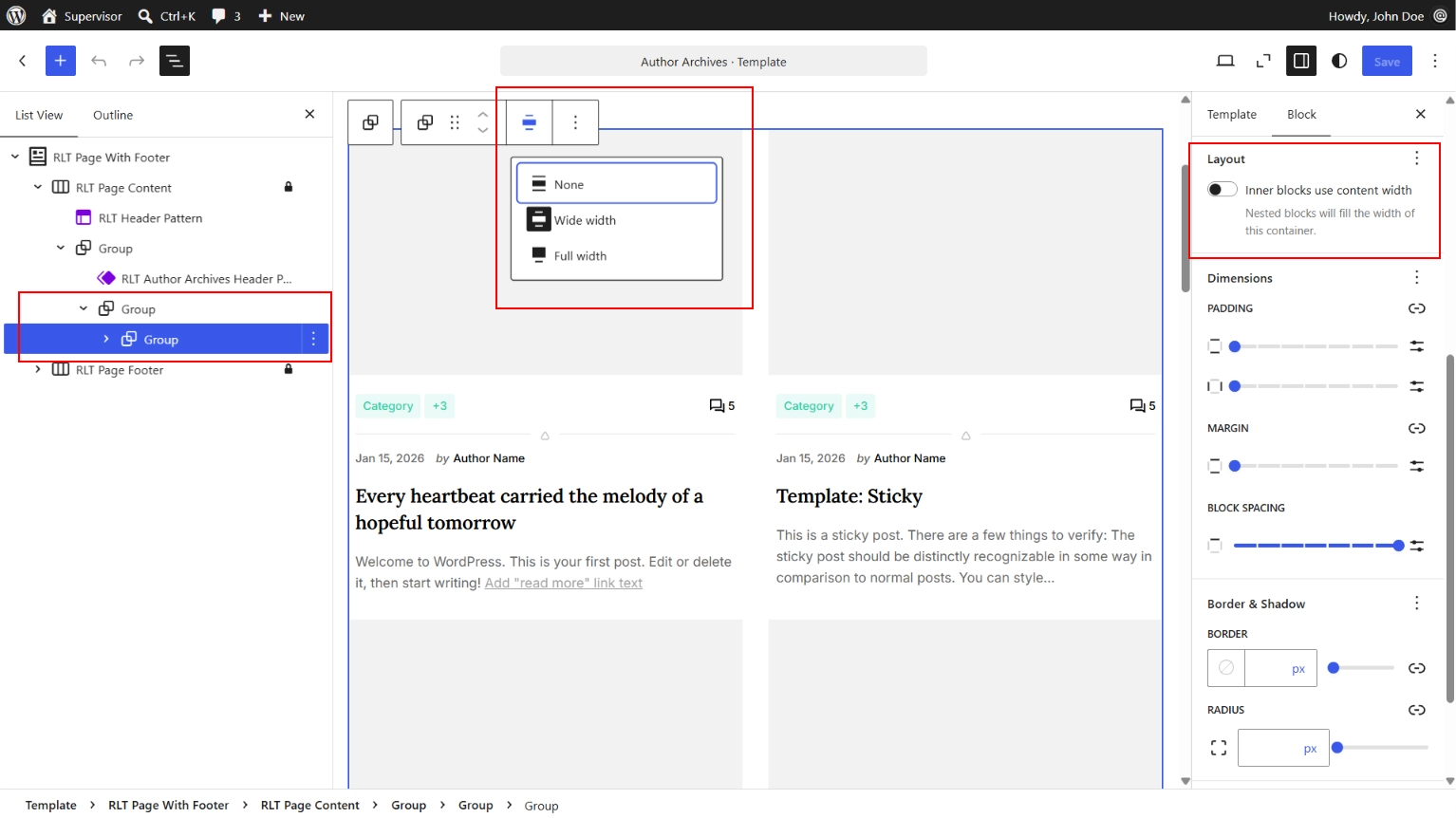
Next, insert another Group block inside the first one. Select the inner Group and disable Inner blocks use content width. Its nested blocks will then use the theme's default content width, with additional options for wide and full-width layouts. (see Picture 2)
Once configured, select the inner Group block. Its toolbar will provide three alignment options:
None — uses the default content width (720px).
Wide width — expands the content to the theme's wide width (1320px).
Full width — allows the content to extend across the full available width.
Make sure to configure the Inner blocks use content width setting separately for both Group blocks. The outer Group should have this option enabled, while the inner Group should have it disabled.
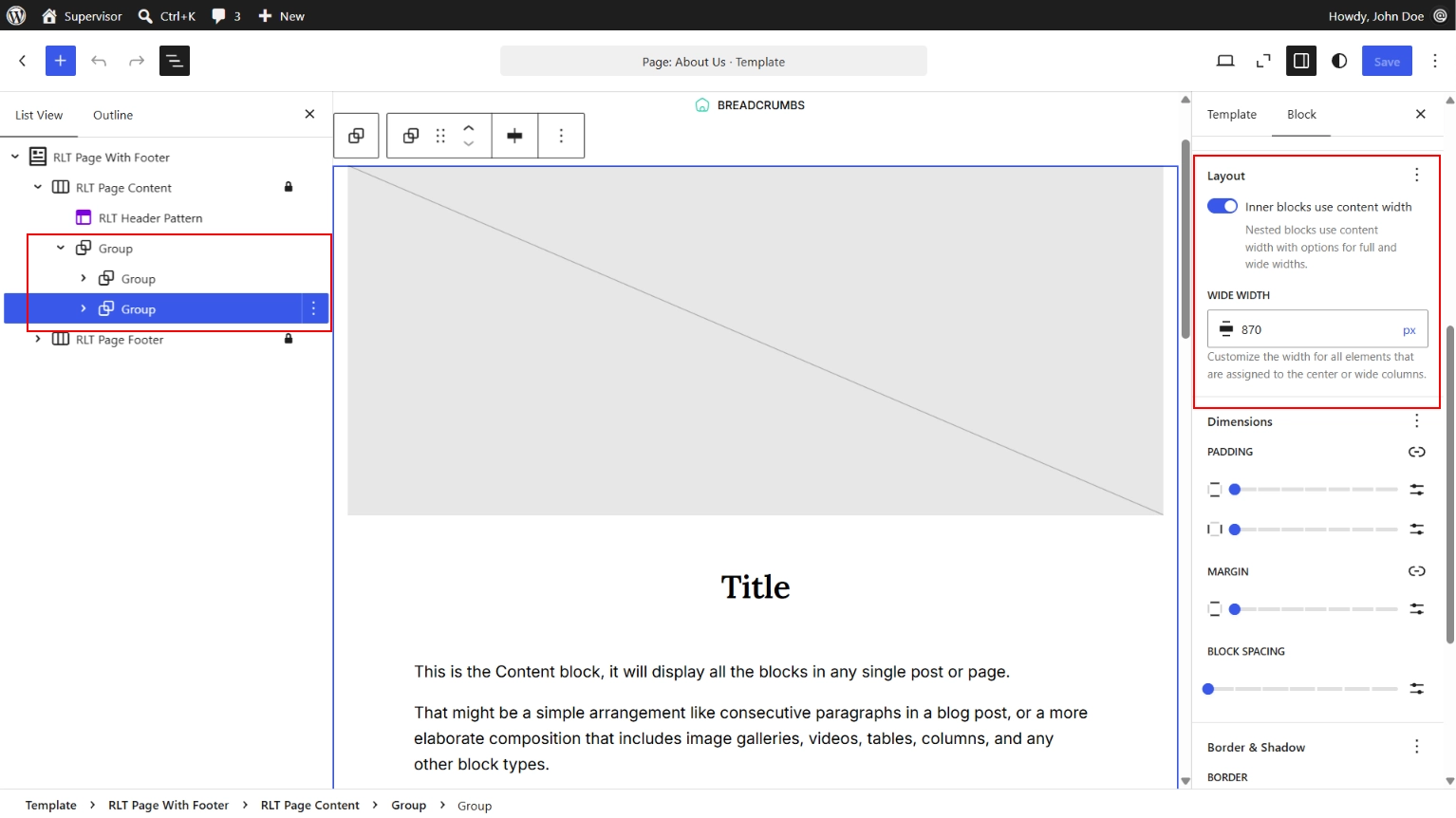
Some pages with a single content column use a fixed width for the Group block. The Supervisor theme sets the Wide width value to 870px for these layouts. This value controls the width of elements assigned to the center or wide columns. To set this value, click the three-dot menu next to the Layout controls in the block settings sidebar.