RLT Footer Pattern
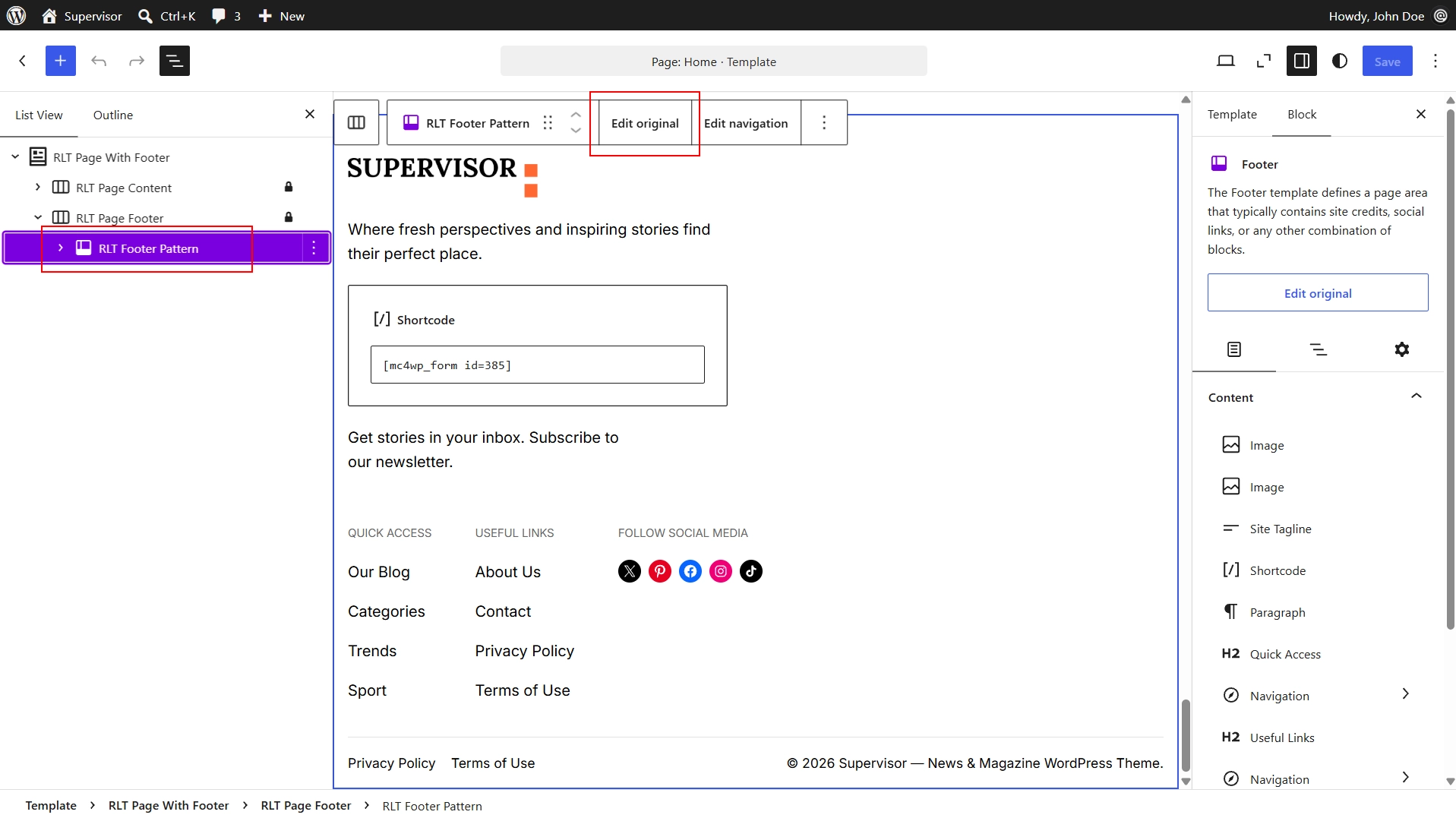
The footer is provided by the RLT Footer Pattern, which is used as an inner block of the RLT Page With Footer block. You can customize its content and layout through the Site Editor.
To edit the footer, open any page template in the Site Editor, select the RLT Footer Pattern, and click Edit original in the block toolbar.
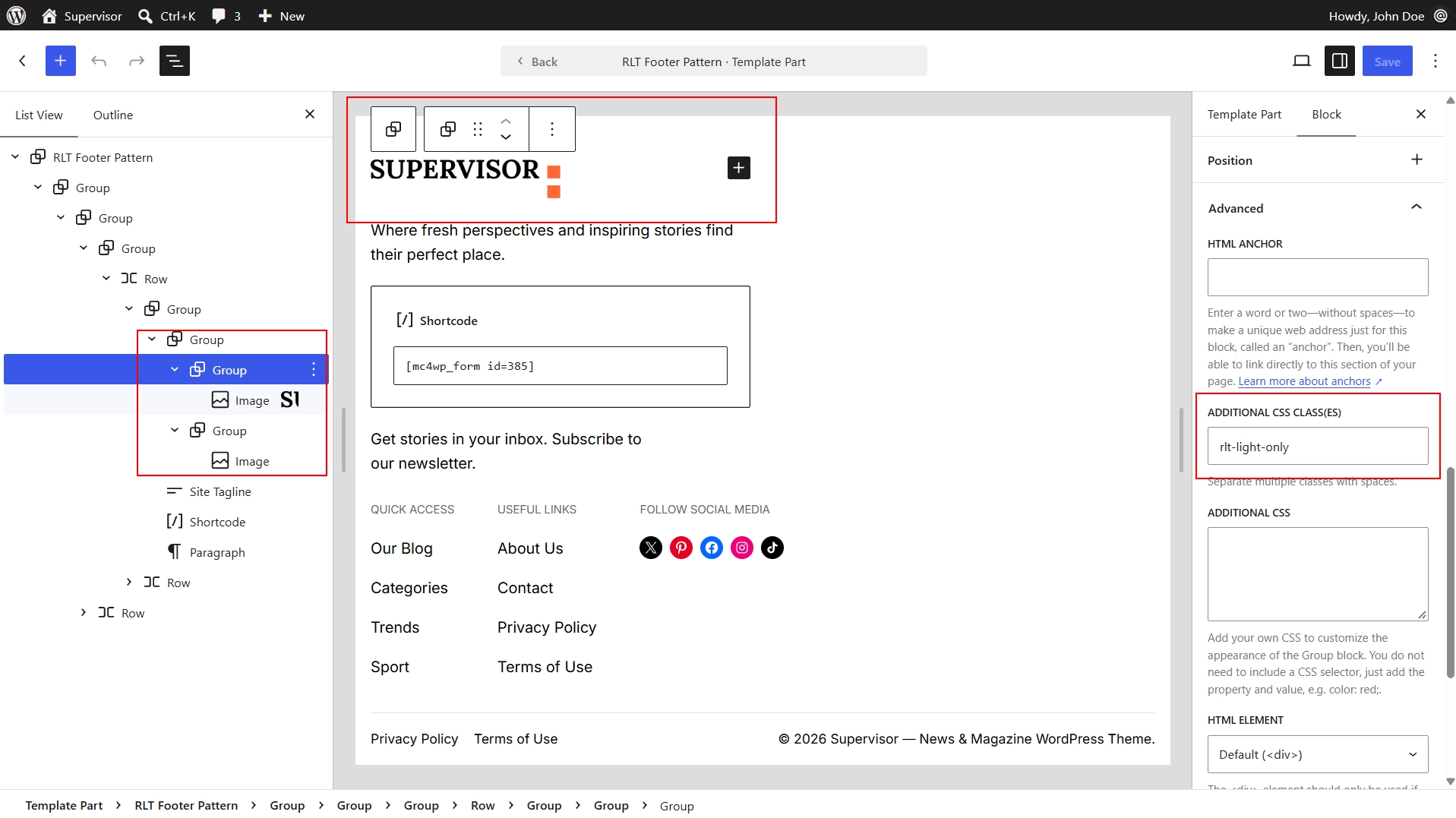
In the pattern editor, you can modify or remove the footer navigation menu, edit or remove the Mailchimp subscription form shortcode, customize the social links block, and make other changes to the footer content. When you are finished, click Save to apply your changes across all templates that use this pattern.
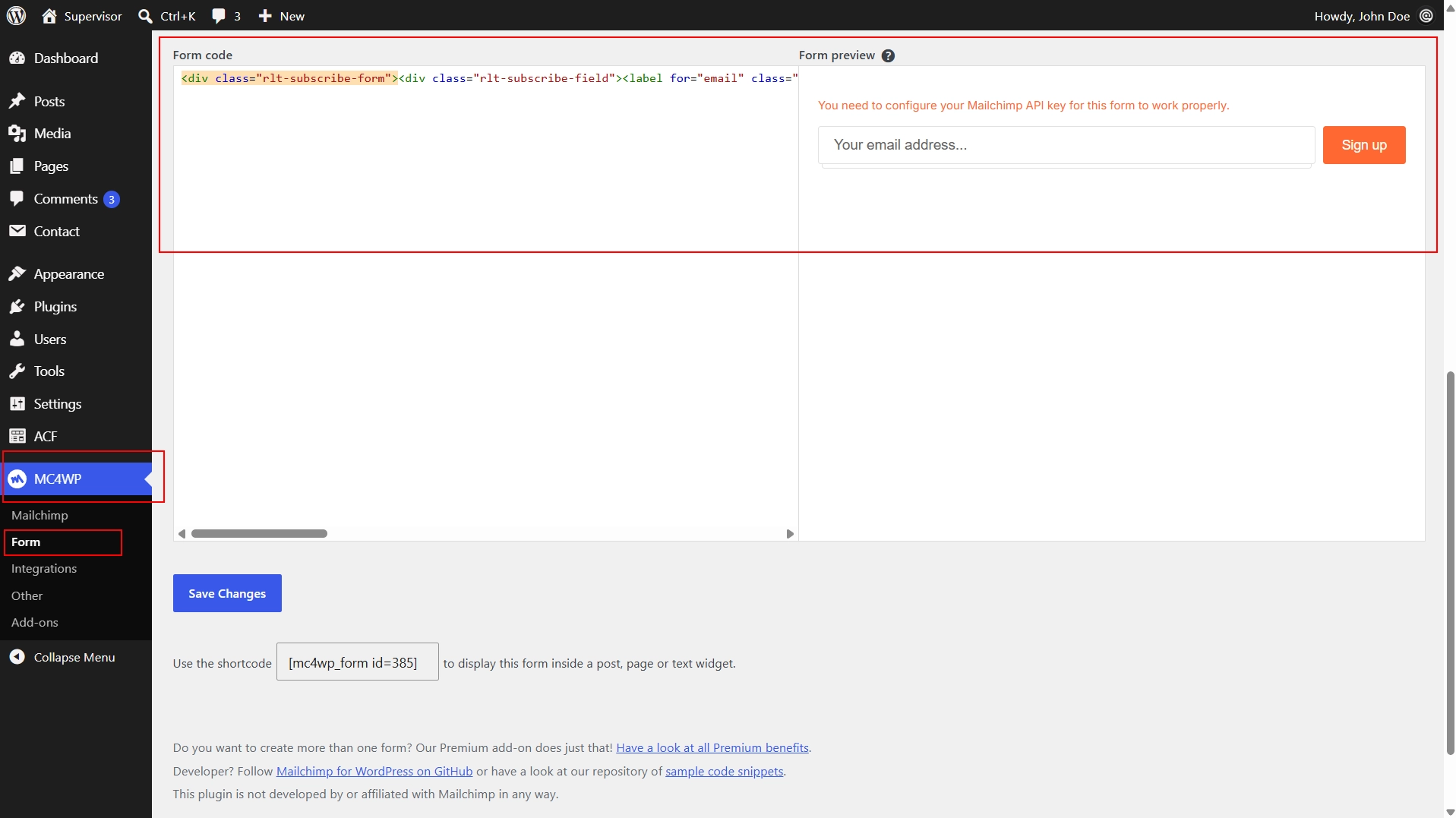
If you have not imported the demo content, you will need to create your own Mailchimp subscription form. Use the HTML code below as a starting point when configuring the form in Mailchimp, then add the generated shortcode to the footer pattern.
HTML code for the MC4WP: Mailchimp for WordPress plugin:
<div class="rlt-subscribe-form"><div class="rlt-subscribe-field"><label for="email" class="rlt-subscribe-label"><span class="screen-reader-text">Email address</span><input type="email" id="email" name="EMAIL" class="rlt-subscribe-input" placeholder="Your email address..." autocomplete="email" required /></label><input type="submit" value="Sign up" class="rlt-subscribe-button" /></div></div>To display different logos in light and dark color themes, add two Image blocks with the corresponding logo files. Place each Image block inside a separate Group block. Assign the rlt-light-only utility class to the Group containing the light-theme logo and rlt-dark-only to the Group containing the dark-theme logo. The theme will automatically display the appropriate logo based on the active color theme.
If you have purchased the Supervisor WordPress theme, you are free to replace the copyright text in the RLT Footer Pattern with your own.